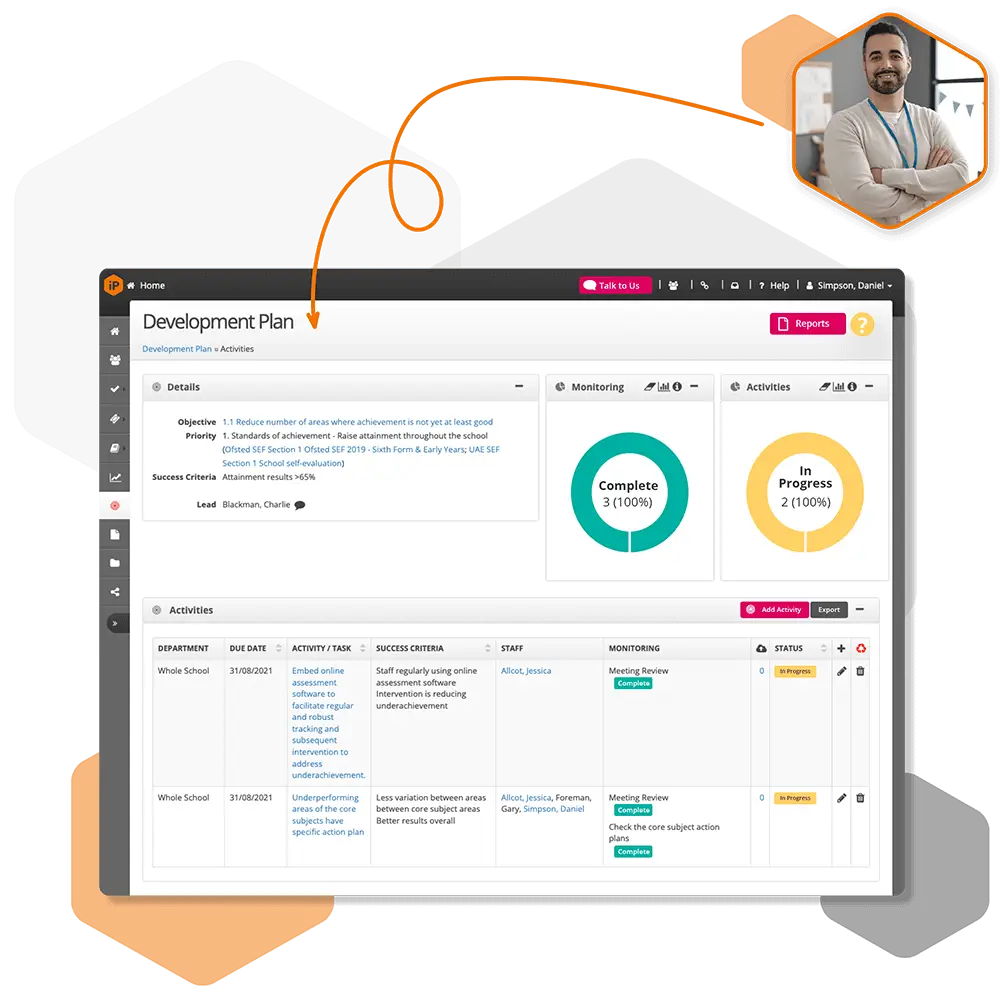
 For schools and academies
Complete school improvement software to plan, monitor and evaluate with confidence.
Explore SchooliP →
For schools and academies
Complete school improvement software to plan, monitor and evaluate with confidence.
Explore SchooliP →
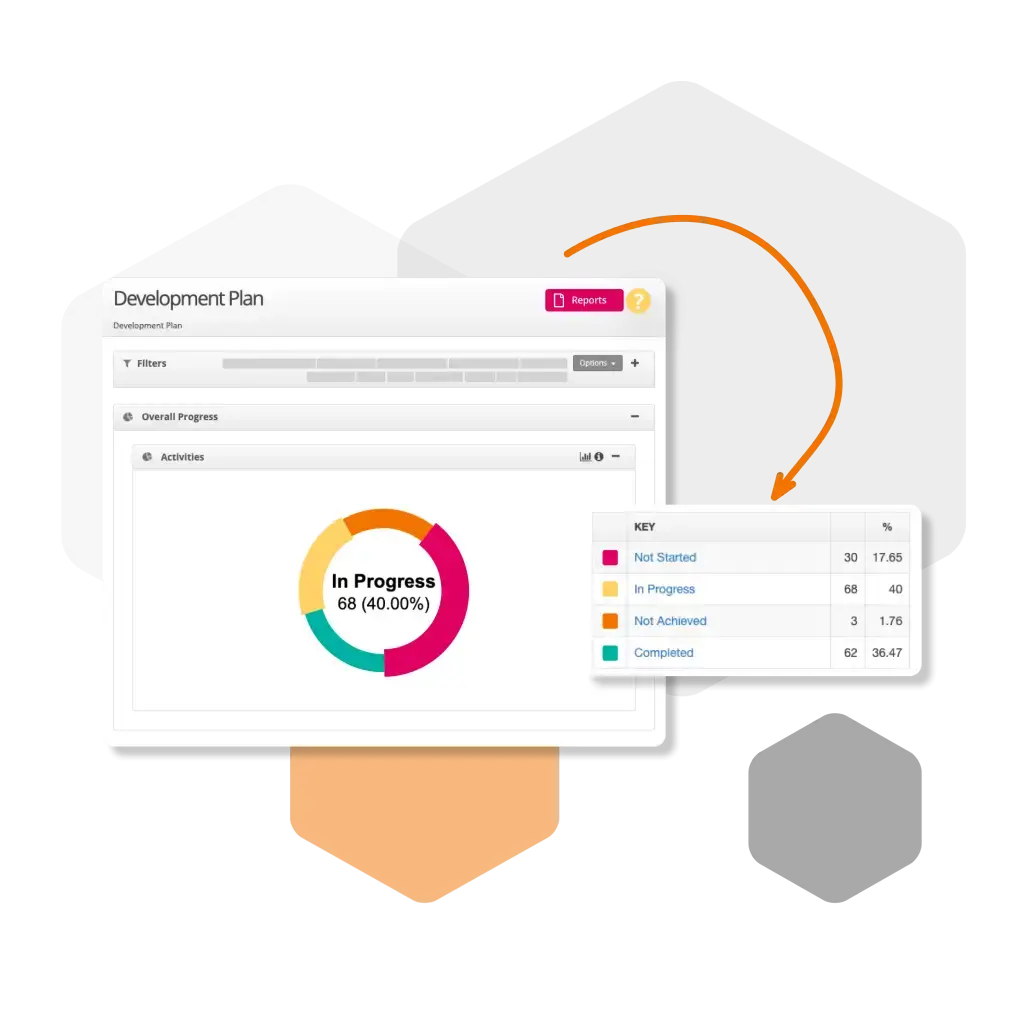
 For multi-academy trusts
Complete trust-wide school improvement software to plan, monitor and evaluate performance with confidence.
Explore SchooliP →
For multi-academy trusts
Complete trust-wide school improvement software to plan, monitor and evaluate performance with confidence.
Explore SchooliP →
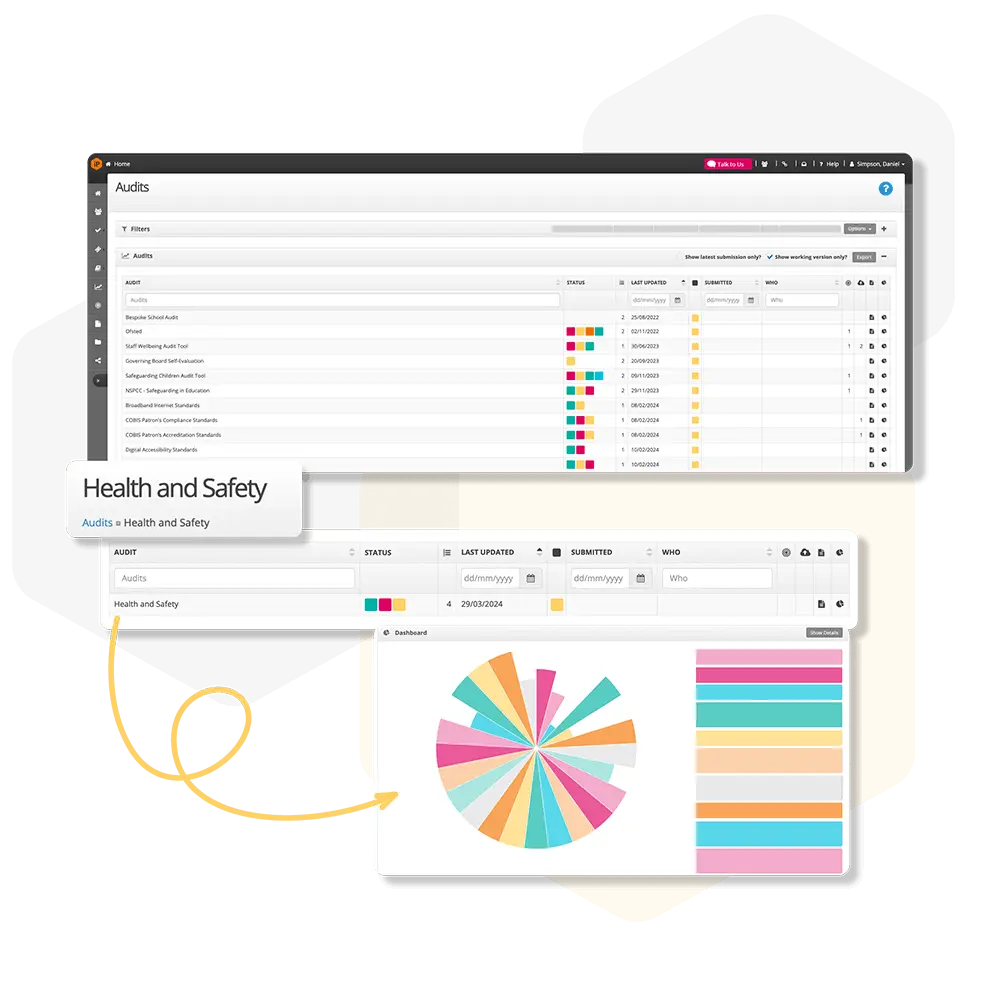
 For further education
Powering quality, compliance and curriculum excellence in colleges.
Explore CollegeiP →
For further education
Powering quality, compliance and curriculum excellence in colleges.
Explore CollegeiP →