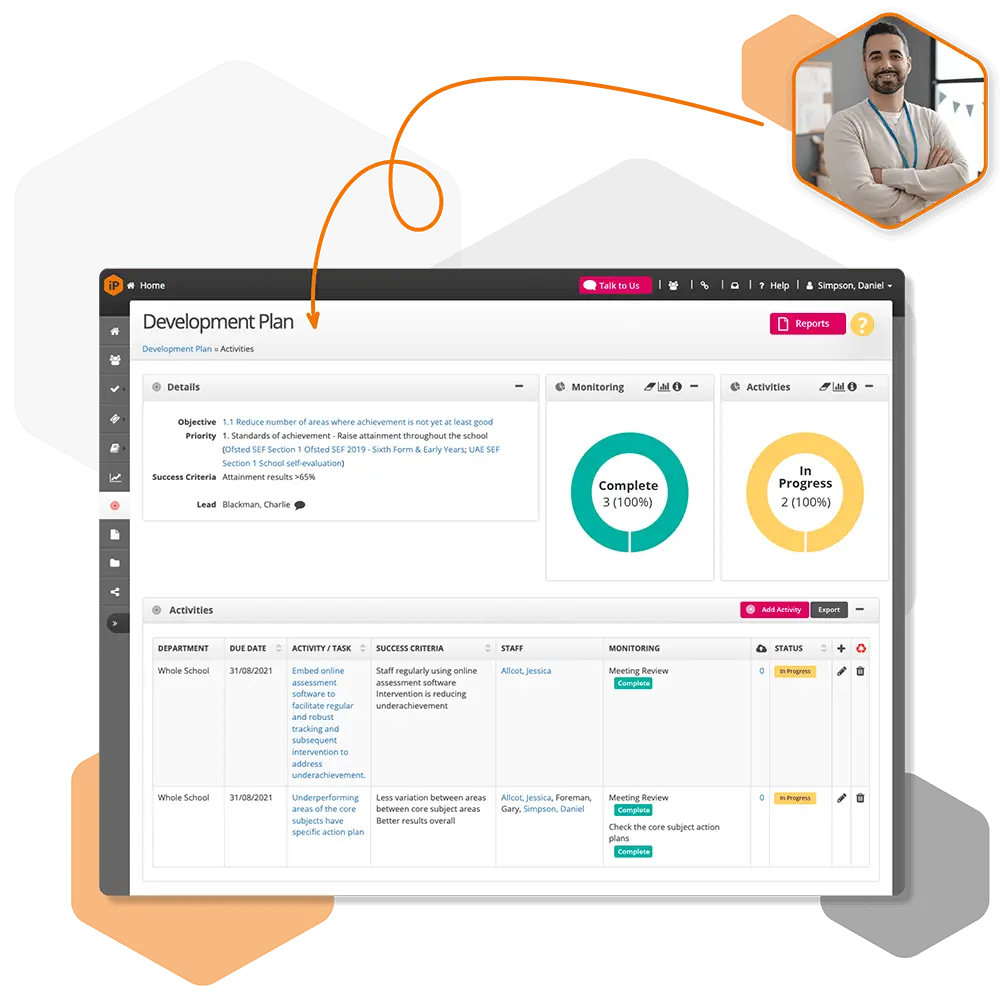
Filtering your reports screen
To filter your reports screen, first go to My Reports and select Review Periods.
Once loaded, you will see the filters field; expand it by clicking the plus icon.
In the filters field, select the area you wish to refine the search by, e.g Status.
Then select Equal To in the next field over.
Finally, select the value; for example, for status, this will be either open or closed.
Select save
Saving the Filter
Once you have clicked search on the applied filter, select options
Click on Options and select Save Filter.
You will then see the following options:
Filter: The name/title of your filter.
Allow all users to see this filter?: Tick this to share the filter with other users who have access to the report.
(They will only see data they are permitted to view.)
Save date range?: Tick this to always use the date range you selected when saving the filter.



 For schools and academies
Complete school improvement software to plan, monitor and evaluate with confidence.
Explore SchooliP →
 For multi-academy trusts
Complete trust-wide school improvement software to plan, monitor and evaluate performance with confidence.
Explore SchooliP →
 For further education
Powering quality, compliance and curriculum excellence in colleges.
Explore CollegeiP →